Transform Retargeter
Overview
This tool allows you to export and import position and rotation information of selected transform nodes to/from files. There are several methods to obtain and set position information. The methods are as follows:
Default
Obtains transform node position information in world position and reproduces it in world position.
Barycentric
Obtains transform node position information as barycentric coordinates of the nearest triangle polygon from that node, and reproduces it using mesh barycentric coordinates. During reproduction, you need to select a mesh with the same topology.
This method is effective when the transform node is on the surface of the mesh.
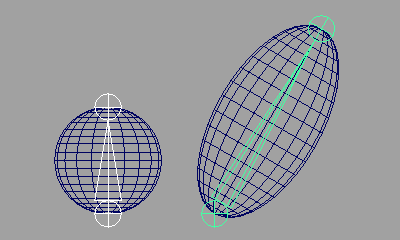
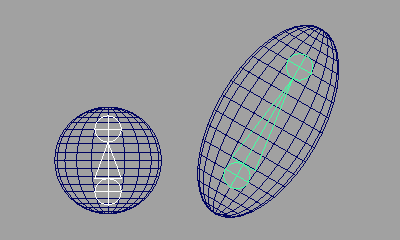
Rbf
Obtains transform node position information from surrounding Vertex positions and reproduces it on a mesh with the same topology. During reproduction, you need to select a mesh with the same topology.
This method is effective when the transform node is inside the mesh.
How to Launch
Launch the tool from the dedicated menu or with the following command.
import faketools.tools.model.transform_retargeter.ui
faketools.tools.model.transform_retargeter.ui.show_ui()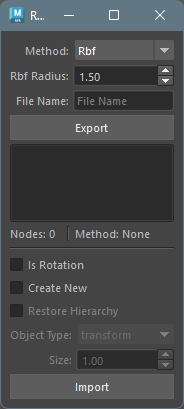
Usage
Export
To export position information, follow these steps:
Select an export method from
Method.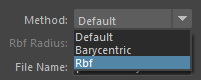
Select target nodes for exporting position information according to the method.
Default- Select transform nodes to export (multiple selection allowed).
Barycentric- Select mesh (mesh transform node) to export.
- Additionally select nodes to export (multiple selection allowed).
Rbf- Select mesh (mesh transform node) to export.
- Additionally select nodes to export (multiple selection allowed).
Enter file name to export in
File Name.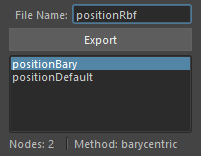
Press
Exportbutton. When export is complete, the exported file name will be displayed in the list.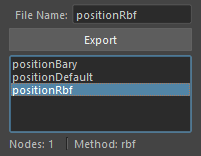
※ When Rbf method is selected, you can
set the export radius with the Rbf Radius
value. If the behavior when reproducing position differs
from expectations, increasing this value may provide the
expected behavior.
Import
To import position information, follow these steps:
Select a file name to import from the list.
Select target nodes for importing according to the export method.
Default- No selection needed.
Barycentric- Select mesh with the same topology as when exported.
Rbf- Select mesh with the same topology as when exported.
Set options and press
Importbutton. With default settings, position information is applied to nodes selected during export.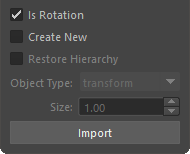
Import Options
Options that can be set during import.
Is Rotation- Sets whether to apply rotation information to transform nodes.
Create New- When checkbox is on, creates new transform nodes
with the node type selected in
Object Type. When off, applies position information to nodes selected during export. - If even one selected node doesn’t exist, an error message is displayed.
- When checkbox is on, creates new transform nodes
with the node type selected in
Object Type- Selects the type of transform node to create when
Create Newis on.
- Selects the type of transform node to create when
Size- Sets the size of transform nodes created when
Create Newis on.
- Sets the size of transform nodes created when
Context Menu
Right-clicking on the list displays a context menu.
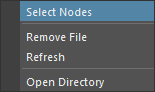
Select Nodes- Selects nodes recorded in the file selected in the list.
Remove File- Deletes the file selected in the list. (The actual file is also deleted.)
Refresh- Updates the list.
Open Directory- Opens the folder where exported files are saved.