Selecter
Overview
A tool to assist in selecting nodes in the scene and replacing names.
Main features include:
- Filter selected nodes by name or node type
- Select parents, children, etc. of selected transform nodes
- Select, rename, duplicate, or duplicate original shapes with replaced node names
- Rename selected nodes

How to Launch
Launch from the dedicated menu or with the following command. The launched tool will dock at the bottom of the shelf.
import faketools.tools.common.selecter.ui
faketools.tools.common.selecter.ui.show_ui()
Usage
Filter by Name

Filters nodes by text. Holding Ctrl
while selecting will deselect matching nodes.
- Pressing the
Aabutton performs case-insensitive filtering. - Pressing the
Allbutton filters across all nodes in the scene.
Filter by Node Type
Filters by selecting a node type. Holding
Ctrl while selecting will deselect matching
nodes.
- Pressing the All button filters across all node types.
Reorder Nodes in Outliner
Reorders selected nodes in the outliner. All nodes must have the same parent (sibling nodes).
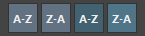
- A-Z (brighter color)
- Sorts nodes alphabetically by name (A→Z).
- Z-A (brighter color)
- Sorts nodes in reverse alphabetical order (Z→A).
- A-Z (darker color)
- Reverses node names (test→tset) then sorts alphabetically.
- Z-A (darker color)
- Reverses node names (test→tset) then sorts in reverse alphabetical order.
Note: This changes the node order in the outliner. Selection order is not changed.
Filter Selection by Node Type
Filters selected nodes by node type. Holding
Ctrl while selecting will deselect matching
nodes.
Select Parents, Children, Siblings of Selected Nodes
Selects parents, children, siblings of selected nodes.

- PAR
- Selects parents of selected nodes.
- CHI
- Selects children of selected nodes.
- SIB
- Selects siblings of selected nodes.
- ALL
- Selects all parents, children, and siblings of selected nodes.
- BTM
- Selects the bottommost nodes in the selected node hierarchy.
- HIE
- Selects all nodes including shape nodes of selected nodes.
All can use modifier keys just like selection in Maya’s view.
Select with Name Replacement (Left/Right)
Selects nodes with replaced names between left and right selected nodes.

All can use modifier keys just like selection in Maya’s view.
※ This feature can change the replacement method
according to the LEFT_TO_RIGHT and
RIGHT_TO_LEFT settings in
settings.json.
Select, Rename, Duplicate, Duplicate Original Shape with Name Replacement
Selects, renames, duplicates, or duplicates original shapes with replaced names of selected nodes.

Commands are executed by replacing names with strings entered in each text box. Press the → button to reverse the replacement direction.

When the search field is empty, you can use
* in the replace field as a placeholder for
the node name. This allows adding prefixes or suffixes
without writing regular expressions.
| Search | Replace | Input Node | Result |
|---|---|---|---|
| (empty) | *_original |
hairE_geo |
hairE_geo_original |
| (empty) | original_* |
hairE_geo |
original_hairE_geo |
_L |
_R |
arm_L_ctrl |
arm_R_ctrl |
- SEL
- Selects with replaced names of selected nodes.
- REN
- Renames with replaced names of selected nodes.
- DUP
- Duplicates with replaced names of selected nodes. Press MIR button to mirror. At that time, POS and ROT determine whether to mirror position and rotation respectively. If FRZ button is pressed, transforms and pivots are frozen after mirroring. For Mesh nodes, components are also frozen.
- ORG
- Duplicates original shapes with replaced names of selected nodes.
Rename Selected Nodes
Renames selected nodes.

- Strings starting with
@are converted to alphabets. Assigned from A in selection order. To change the first character, change the string in the @ field. - Strings starting with
#are converted to numbers. Assigned from 1 in selection order. To change the first number, change the string in the # field. - Strings starting with
~are replaced with the names of selected nodes.
Examples:
| Selected Node | Field | Rename Result |
|---|---|---|
| Any | fake@ | fakeA, fakeB, fakeC, … |
| Any | fake# | fake1, fake2, fake3, … |
| Any | ~_fake | Any_fake |
Change Selection Order
Changes the selection order of selected nodes. Click the button below and select from the displayed menu.

- LF (Last to First)
- Moves the last selected node to the first position.
- Example:
[A,B,C,D,E]→[E,A,B,C,D]
- FL (First to Last)
- Moves the first selected node to the last position.
- Example:
[A,B,C,D,E]→[B,C,D,E,A]
- REV (Reverse)
- Completely reverses the selection order.
- Example:
[A,B,C,D,E]→[E,D,C,B,A]
Note: This only changes the selection order. Node order in the outliner is not changed.