Dependency Installer
Overview
Dependency Installer is a tool for installing
optional Python packages required by some FakeTools
tools directly from within Maya.
Instead of running mayapy -m pip install on
the command line, you can check package status and
install packages through a GUI.
Two launch methods are supported:
| Method | Description |
|---|---|
| Maya menu | FakeTools > Common > Dependency Installer |
| Standalone | Double-click install_dependencies.bat
at the repository root |
Target Packages
| Package | Used By | Required |
|---|---|---|
| numpy | Bounding Box Creator, Mesh Retargeter | Yes |
| scipy | Bounding Box Creator, Mesh Retargeter | Yes |
| trimesh | Mesh Fitter, BlendShape Transfer | Yes |
| rtree | Mesh Fitter, BlendShape Transfer | Yes |
| fast-simplification | Mesh Fitter, BlendShape Transfer | Yes |
| Pillow | Snapshot Capture, VP Compositor | Yes |
| aggdraw | Snapshot Capture | No |
| mss | Snapshot Capture | No |
| robust-laplacian | Robust Weight Transfer | No |
How to Launch
From Maya
Launch the tool from the dedicated menu or using the following command:
import faketools.tools.common.dependency_installer.ui
faketools.tools.common.dependency_installer.ui.show_ui()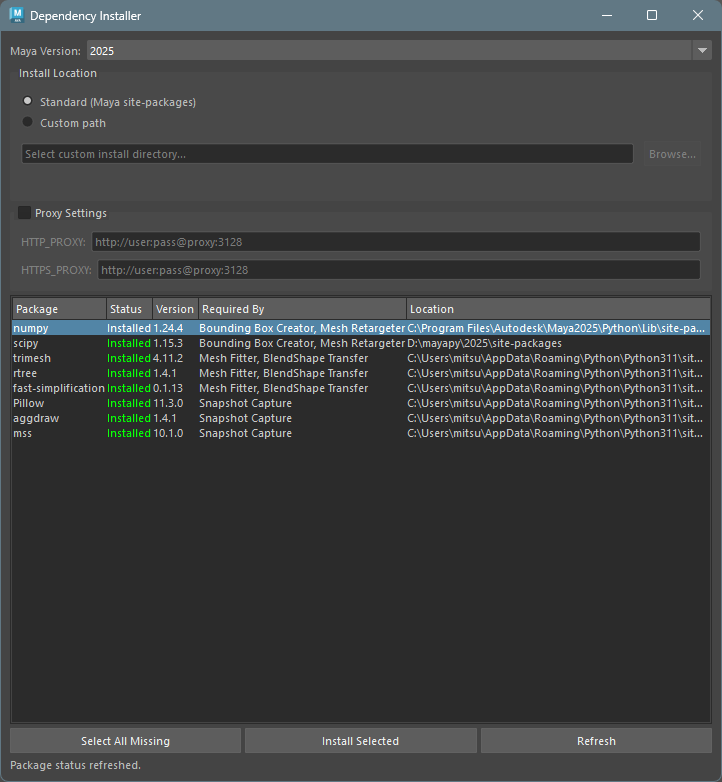
Standalone
Double-click install_dependencies.bat at
the repository root.
It automatically detects installed Maya versions
(2023-2026) and launches the UI using the latest
available mayapy.
Usage
Basic Procedure
Select the target Maya version from the Maya Version dropdown. When launched from Maya, the current version is selected by default.
Choose the Install Location (Standard or Custom path).
Review the package status in the package table.
Check the packages you want to install, or click
Select All Missingto select all missing packages at once.Click
Install Selectedto run the installation.After completion, the table is automatically refreshed.
Maya Version Section
Select the target Maya version. Versions are detected
by scanning
C:\Program Files\Autodesk\Maya*.
- When launched from Maya: The
currently running Maya version is selected by default.
Package status is checked within the current Maya
process, so paths added by
userSetup.pyare reflected. - When a different version is selected / Standalone: Package status is checked by running the target version’s mayapy via subprocess.
Install Location Section
- Standard (Maya site-packages): Installs to Maya’s default site-packages. May require administrator privileges.
- Custom path: Installs to a custom
directory. The actual install path is
<specified_path>/<maya_version>/site-packages/.
When using a custom path, you need to configure a
.env file so that FakeTools automatically
loads packages from that path on startup (see
below).
Proxy Settings Section
Use this section when installing behind a proxy. Enable the checkbox and enter HTTP_PROXY / HTTPS_PROXY values.
- Example:
http://user:pass@proxy:3128 - Proxy settings are session-only and are not saved.
Package Table
Package status is displayed in 5 columns:
| Column | Description |
|---|---|
| Package | Package name. A checkbox is shown for uninstalled packages |
| Status | Installed (green) / Missing (required: red, optional: orange) |
| Version | Version number if installed |
| Required By | Tools that depend on this package |
| Location | Install directory (site-packages path) if installed |
Buttons
| Button | Description |
|---|---|
| Select All Missing | Select all uninstalled packages at once |
| Install Selected | Install the checked packages |
| Refresh | Re-check package status |
Custom Path Auto-Loading
To load packages installed to a custom path when Maya starts, add the install path to Python’s search path using one of the following methods.
Method 1: .env File (Recommended)
Create a .env file at the repository
root. Copy .env.example to
.env and set the path:
FAKETOOLS_SITE_PACKAGES=D:/my_packagesWhen FakeTools initializes,
<FAKETOOLS_SITE_PACKAGES>/<maya_version>/site-packages/
is automatically added to sys.path.
Note: The
.envfile is included in.gitignoreand will not be committed to the repository.
Method 2: Manual Addition via userSetup.py
You can also add the install path directly to
sys.path in Maya’s
userSetup.py.
import sys
sys.path.insert(0, "D:/my_packages/2025/site-packages")Note:
userSetup.pyis only executed when Maya starts, so paths added this way are not reflected in standalone mode’s status display.
Package Registry (versions)
The list of target packages is managed in JSON files
under the versions/ directory.
dependency_installer/versions/
├── common.json       # Default (shared across all Maya versions)
└── maya2023.json     # Maya 2023 specific settings
Resolution Order
When a Maya version is selected, files are loaded in the following order:
versions/maya{version}.json(e.g.,maya2023.json) is used if it exists- Falls back to
versions/common.jsonif no version-specific file is found
When a version-specific file is found, it is
not merged with
common.json — its contents are used as the
entire registry.
JSON Format
Each entry has the following fields:
{
    "pip_name": "fast-simplification",
    "import_name": "fast_simplification",
    "required_by": ["Mesh Fitter", "BlendShape Transfer"],
    "optional": false,
    "version": "==0.1.12"
}| Field | Type | Required | Description |
|---|---|---|---|
pip_name |
string | Yes | pip package name (the name passed to
pip install) |
import_name |
string | Yes | Python import name (the xxx in
import xxx) |
required_by |
string[] | Yes | List of tools that use this package |
optional |
bool | Yes | false: required (red when Missing),
true: optional (orange) |
version |
string | No | PEP 440 version constraint. Omit for no version pinning |
version Field
The version field accepts PEP 440
version constraints. Values must start with
=, <, >,
!, or ~ to be recognized as
constraints.
| Example | pip command | Description |
|---|---|---|
"==0.1.12" |
pip install fast-simplification==0.1.12 |
Exact match |
">=1.0,<2.0" |
pip install package>=1.0,<2.0 |
Range constraint |
"~=1.4" |
pip install package~=1.4 |
Compatible release
(>=1.4, <2.0) |
| (omitted) | pip install package |
Install latest version |
Creating a Version-Specific File
When a specific Maya version requires different
package versions, copy common.json to
maya{version}.json and modify the
version field for the relevant
packages.
# Example: Create a registry for Maya 2024
cp versions/common.json versions/maya2024.json
# Edit maya2024.json to adjust version constraints
Notes
- Standard installation may require administrator privileges. Run Maya as administrator if needed.
- If pip is not available, run
mayapy -m ensurepipfirst. - When launched standalone, paths added by
userSetup.pyare not detected. Paths specified viaFAKETOOLS_SITE_PACKAGESin.envare detected. - If installation fails, pip error messages are displayed in red on the status label. Details are also written to the log.
- During installation, an external console window opens so you can monitor pip progress in real time.