Toolbar
Overview
The toolbar provides quick access to main actions like creating files, saving, and running code.

Features
 Toggle File Explorer
- Toggles the file explorer visibility.
 Create New File
- Creates a new file.
Clicking this button opens a dialog to enter the file name.
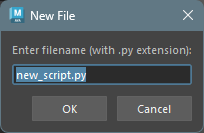
- Enter a file name and click “OK” to create a new file and open it in a tab.
 Run Code
- Runs the code in the currently active editor.
If code is selected, only the selected portion will be executed.
 Save Current File
- Saves the contents of the currently active
editor.
If there are unsaved changes, an asterisk (*) appears on the tab.
 Save All Files
- Saves the contents of all open editors.
 Clear Console
Clears the console contents.
 Open Root Directory
- Opens the workspace root directory in the OS standard file explorer.
 Swap Editor/Terminal
Position
Swap Editor/Terminal
Position
- Swaps the vertical positions of the code editor and terminal.
 Toggle Word Wrap
- Toggles word wrap ON/OFF for the code editor.
- When ON, long lines wrap at the editor width. When OFF, a horizontal scrollbar appears.
- This setting is persisted across sessions.
 Fold All
- Folds (collapses) all foldable code blocks in the current editor.
 Unfold All
- Unfolds (expands) all folded code blocks in the current editor.
Keyboard Shortcuts
The following keyboard shortcuts are assigned to toolbar actions.
| Action | Shortcut |
|---|---|
| Create New File | Ctrl+N |
| Run Code | Ctrl+Shift+Enter, Numpad Enter |
| Save Current File | Ctrl+S |
| Save All Files | Ctrl+Shift+S |
| Fold All | Ctrl+Alt+[ |
| Unfold All | Ctrl+Alt+] |