Code Editor
Overview
The code editor is the main interface for writing
code.
It provides advanced code editing features such as
syntax highlighting and error checking.
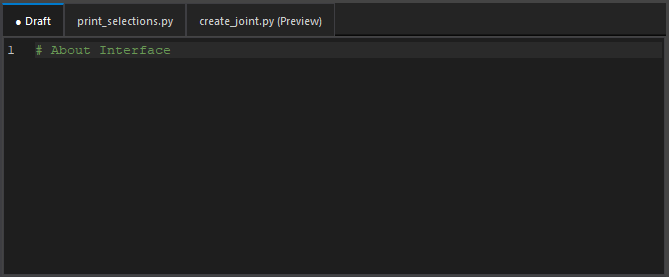
Tab Management
Draft Tab
The Draft tab is a space for saving temporary code
notes and snippets.
This tab is always visible and cannot be closed.
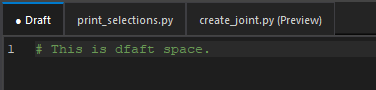
Persistent Tabs and Preview Tabs
In the code editor, you can open files in persistent tabs or preview tabs. Both types of tabs are used for actual file editing.
Clicking files in the file explorer opens tabs as follows:
Persistent Tab: Double-clicking a file opens it as a persistent tab.
Persistent tabs allow you to open and edit multiple files simultaneously.
Files with unsaved changes display an asterisk (*) on the tab.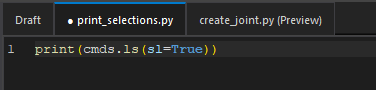
Preview Tab: Single-clicking a file opens it as a preview tab.
Preview tabs allow you to preview multiple files sequentially in a single tab.
Previewing a new file overwrites the previous preview content.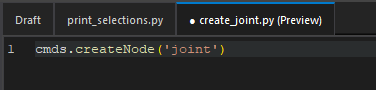
You can rearrange tabs by dragging and
dropping.
You can also close tabs by middle-clicking on them.
Find/Replace
The code editor has built-in find and replace
functionality.
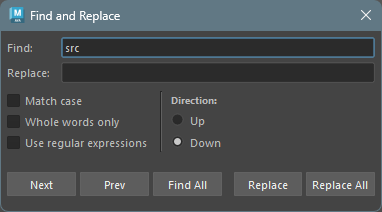
Press Ctrl+F/Ctrl+H to open the find/replace dialog.
Fields
- Find: Enter the string to search for.
- Replace: Enter the replacement string.
Checkboxes
- Match case: When enabled, searches are case-sensitive.
- Whole words only: When enabled, only matches complete words.
- Use regular expression: When enabled, uses regex for searching.
Direction
- Up: Searches upward from the cursor position.
- Down: Searches downward from the cursor position.
Buttons
- Next: Moves to the next match.
- Prev: Moves to the previous match.
- Find All: Selects all matches and enters multi-cursor mode.
- Replace: Replaces the current match.
- Replace All: Replaces all matches.
Multi-Cursor
The code editor supports multi-cursor
functionality.
Hold Ctrl and click to place multiple cursors.
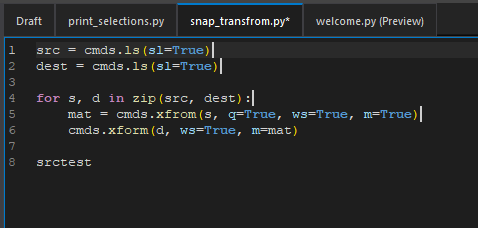
Normal editing operations work in multi-cursor
mode.
For example, you can select, copy, paste, and
delete.
Main keyboard shortcuts for multi-cursor mode:
| Shortcut | Description |
|---|---|
| Ctrl+Click | Add cursor |
| Ctrl+Drag | Add selection |
| Middle-Click+Drag | Rectangle/column selection |
| Ctrl+D | Next occurrence |
| Ctrl+Shift+L | All occurrences |
| Alt+Shift+I | Add cursors at line ends |
| Escape | Clear cursors |
Code Folding
The code editor supports Python indent-based code
folding.
Foldable blocks (such as def,
class, if, for,
while, try, with)
display a chevron indicator in the gutter area next to
line numbers.
- Chevron indicators appear when hovering over the fold gutter area, and fade out when the mouse leaves.
- Folded blocks always display a right-pointing
chevron (›) and a placeholder summary (e.g.,
... (5 lines)).
Fold/Unfold Operations
| Operation | Method |
|---|---|
| Fold/Unfold a block | Click the chevron (˅/›) in the gutter |
| Recursive fold/unfold | Shift+Click the chevron |
| Fold current block | Ctrl+Shift+[ |
| Unfold current block | Ctrl+Shift+] |
| Fold all | Ctrl+Alt+[ or toolbar button |
| Unfold all | Ctrl+Alt+] or toolbar button |
Integration with Other Features
- Find/Replace: If a search match is inside a folded region, the region is automatically unfolded.
- Multi-cursor: If an added cursor lands inside a folded region, the region is automatically unfolded.
- Line operations: Moving, duplicating, or deleting a folded header line automatically unfolds it first.
Special Context Menu Features
The context menu (right-click menu) has several code editor-specific features.
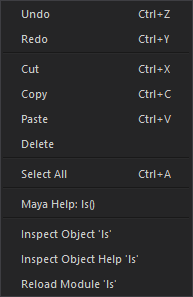
Command Help Display
You can display Maya python (cmds) and OpenMaya (om) command help in the browser from the context menu.
To display documentation, select the function name
following cmds as shown below:
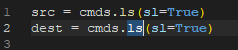
After selecting, choose Maya Help:
Supported commands are as follows.
Help for function names following the corresponding
strings will be displayed.
| Module Name | Corresponding Strings |
|---|---|
| maya.cmds | cmds, mc |
| maya.api.OpenMaya | om, OpenMaya |
| maya.api.OpenMayaUI | omui, OpenMayaUI |
| maya.api.OpenMayaAnim | oma, OpenMayaAnim |
| maya.api.OpenMayaRender | omr, OpenMayaRender |
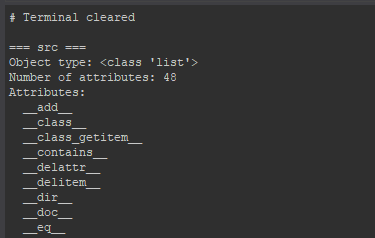
Inspect Object (Help)
You can inspect Maya objects from the context menu.
Select an object string and execute Inspect
Object:
The object information will be displayed in the
terminal.
Inspect Object Example
Reload
You can reload the selected module from the context menu.
Select a module string and execute Reload
Module:
The module will be reloaded.
Keyboard Shortcuts
Main keyboard shortcuts available in the code editor:
| Shortcut | Description |
|---|---|
| Ctrl+N | Create new file |
| Ctrl+S | Save current file |
| Ctrl+Shift+S | Save all open files |
| Ctrl+D | Select next occurrence (multi-selection) |
| Ctrl+Shift+D | Duplicate current line |
| Ctrl+Shift+K | Delete current line |
| Ctrl+L | Select current line (repeat to extend) |
| Ctrl+Shift+Up/Down | Move line up/down |
| Ctrl+/ | Toggle line comment |
| Tab / Shift+Tab | Indent/unindent selection |
| Enter | Smart newline with auto-indent |
| Ctrl+Click | Add cursor at click position |
| Ctrl+Drag | Add selection (drag to select different code) |
| Middle-Click+Drag | Rectangle/column selection |
| Ctrl+D | Select word and add next occurrence |
| Ctrl+Shift+L | Select all occurrences of current word |
| Alt+Shift+I | Add cursors at end of lines in selection |
| Escape | Clear all multi-cursors |
| Ctrl+F | Find dialog |
| Ctrl+H | Replace dialog |
| F3 / Shift+F3 | Find next/previous |
| Ctrl+Enter | Execute current line or selection |
| Numpad Enter | Execute current script (same as Run button) |
| Ctrl+Shift+Enter | Execute entire file |
| Ctrl+Shift+[ | Fold current block |
| Ctrl+Shift+] | Unfold current block |
| Ctrl+Alt+[ | Fold all |
| Ctrl+Alt+] | Unfold all |
| Ctrl+K | Clear terminal output |
| Ctrl+MouseWheel | Adjust font size |