Skin Weights Transfer
Overview
Skin Weights Transfer is a tool for moving skin weights from multiple source influences to multiple target influences on selected components.
Weights are proportionally removed from source influences and distributed to target influences. The distribution method for multiple targets can be chosen from three options: Even, Proportional, and Distance. The transfer amount can be specified as a percentage or an absolute value.
Soft Selection is supported — components in the falloff region are automatically included, and the transfer amount is scaled by each component’s soft selection weight.
Launch
Launch the tool from the dedicated menu or with the following command.
import faketools.tools.rig.skin_weights_transfer.ui
faketools.tools.rig.skin_weights_transfer.ui.show_ui()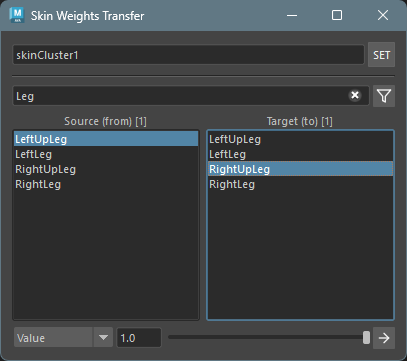
Usage
To transfer weights, follow these steps:
- Select a mesh or components with a skinCluster and
click the
SETbutton to set the skinCluster. - In the left Source (from) list, select the influences to take weights from (multi-select: Ctrl+click / Shift+click).
- In the right Target (to) list, select the influences to receive the weights (multi-select: Ctrl+click / Shift+click).
- Select the Distribution method (effective when multiple targets are selected).
- Select the target vertices, CVs, or lattice points (when Soft Selection is enabled, components in the falloff region are also included).
- Select the transfer mode (Percentage / Value).
- Set the transfer amount using the Amount slider.
- Click the execute button to transfer the weights.
Options
SkinCluster
Sets the skinCluster to operate on.
- Select a mesh or components and click the
SETbutton to automatically detect the skinCluster assigned to the selected object. - The detected skinCluster name is displayed in the field.
Influence Filter
Filters the influence list display.
- Text Filter: Enter space-separated keywords to show only influences containing any of the keywords (OR search).
- Affected Only button: When enabled, only influences with non-zero weights on the currently selected components are shown. Items are sorted by total weight in descending order. The list updates in real-time as the Maya selection changes.
Source (from) List
Select the influences to take weights from.
- Multiple influences can be selected (Ctrl+click / Shift+click).
- The number of selected influences is shown in the
label as
[N]. - Selected influences are highlighted in the Maya viewport.
Target (to) List
Select the influences to receive weights.
- Multiple influences can be selected (Ctrl+click / Shift+click).
- The number of selected influences is shown in the
label as
[N]. - The same influence cannot be selected in both Source and Target (overlapping selections will cause an error).
Distribution
Select how weights are distributed across multiple target influences. When only one target is selected, the result is the same regardless of the setting.
- Even: Distributes the transferred weight equally among all targets.
- Proportional: Distributes based on each target’s existing weight ratio. Automatically falls back to Even when all target weights are zero.
- Distance: Distributes based on the distance from each component to each target joint (inverse distance weighting). Closer joints receive more weight.
Transfer Mode (Percentage / Value)
Select the transfer method.
- Percentage: Specifies the transfer amount as a percentage (0-100%) of the total source influence weights.
- Value: Specifies the transfer amount as an absolute value (0.0-1.0). If the value exceeds the total source weight, it is clamped to the source total.
Amount
Specifies the transfer amount according to the selected mode.
Percentage mode (default):
- 100%: Transfers all weights from source influences to the target.
- 50%: Transfers half of the source influence weights to the target.
- 0%: No weights are transferred.
Value mode:
- 1.0: Transfers up to 1.0 weight to the target (clamped to the source total).
- 0.1: Transfers up to 0.1 weight to the target.
Shift-key snapping:
Hold Shift while dragging the slider to snap values in fixed increments.
- Percentage mode: Steps of 5 (0, 5, 10, 15, … 100)
- Value mode: Steps of 0.05 (0.00, 0.05, 0.10, 0.15, … 1.00)
When multiple source influences are selected, each source’s weight is proportionally reduced based on its share of the total.
Soft Selection Support
When Maya’s Soft Selection is enabled, components in the falloff region are automatically included. The transfer amount for each component is multiplied by its Soft Selection weight (0.0-1.0).
- Weight 1.0 (directly selected): The specified Amount is applied in full.
- Weight 0.5 (mid-falloff): 50% of the Amount is applied.
- Weight 0.0 (outside range): No weight is transferred.
When Soft Selection is disabled, transfer is applied equally to all selected components as usual.
Note: The Affected Only filter is not affected by Soft Selection and only references directly selected components.
How Weight Transfer Works
The following calculation is performed for each component:
- Calculate the total weight of all source influences.
- Determine the transfer amount based on the mode, then multiply by the Soft Selection weight.
- Proportionally reduce each source influence based on its share of the total.
- Distribute the total reduced amount to target influences based on the selected Distribution method.
Percentage mode formula:
transfer_amount = source_total × (Amount / 100) × soft_selection_weightValue mode formula:
transfer_amount = min(Amount × soft_selection_weight, source_total)Single Target Examples
Example (Percentage mode):
- Source A weight: 0.6, Source B weight: 0.3, Amount: 50%, Soft Selection weight: 1.0
- Transfer amount: (0.6 + 0.3) × 0.5 × 1.0 = 0.45
- Reduction from Source A: 0.45 × (0.6 / 0.9) = 0.30 → remaining 0.30
- Reduction from Source B: 0.45 × (0.3 / 0.9) = 0.15 → remaining 0.15
- Added to Target: +0.45
Example (with Soft Selection):
- Same conditions with Soft Selection weight of 0.5
- Transfer amount: (0.6 + 0.3) × 0.5 × 0.5 = 0.225
- Reduction from Source A: 0.225 × (0.6 / 0.9) = 0.15 → remaining 0.45
- Reduction from Source B: 0.225 × (0.3 / 0.9) = 0.075 → remaining 0.225
- Added to Target: +0.225
Multiple Target Examples
Example (Even distribution):
- Source A weight: 0.9, Amount: 100%, two targets: Target X and Target Y
- Transfer amount: 0.9
- Added to Target X: 0.9 × 0.5 = 0.45
- Added to Target Y: 0.9 × 0.5 = 0.45
Example (Proportional distribution):
- Source A weight: 0.6, Amount: 100%, Target X (existing weight 0.3) and Target Y (existing weight 0.1)
- Transfer amount: 0.6
- Target X ratio: 0.3 / (0.3 + 0.1) = 0.75
- Target Y ratio: 0.1 / (0.3 + 0.1) = 0.25
- Added to Target X: 0.6 × 0.75 = 0.45
- Added to Target Y: 0.6 × 0.25 = 0.15
Example (Distance distribution):
- Source A weight: 0.8, Amount: 100%, Target X (distance 2.0 from vertex) and Target Y (distance 8.0 from vertex)
- Transfer amount: 0.8
- Target X inverse distance: 1/2.0 = 0.5
- Target Y inverse distance: 1/8.0 = 0.125
- Target X ratio: 0.5 / (0.5 + 0.125) = 0.8
- Target Y ratio: 0.125 / (0.5 + 0.125) = 0.2
- Added to Target X: 0.8 × 0.8 = 0.64
- Added to Target Y: 0.8 × 0.2 = 0.16
Supported Components
The following component types are supported:
- Vertices
- CVs (Control Vertices)
- Lattice Points
An error occurs if the selected components do not belong to the skinCluster’s geometry.