Animation Import/Export
Overview
Save time-based keyframe animation to files and import to other scenes or nodes. Files are automatically split by namespace, and can be applied to different namespaces on import.
How to Launch
Launch the tool from the dedicated menu or with the following command.
from faketools.tools.anim.anim_import_export import ui
ui.show_ui()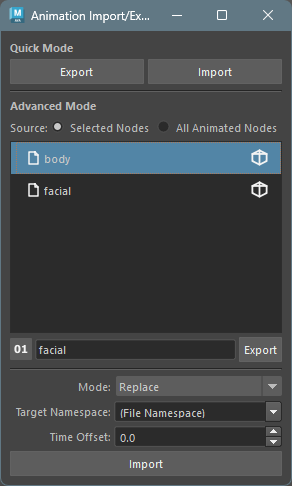
Usage
There are Quick Mode for temporarily saving animation and Advanced Mode for saving to files.
Export
- Select nodes with animation keyframes (multiple selection allowed).
- Quick Mode: Press
Exportbutton to temporarily save animation in binary format. - Advanced Mode: Select file format,
enter file name, and press
Exportbutton to save animation.
The Source setting controls which nodes
are exported.
- Selected Nodes: Exports animation from selected nodes.
- All Animated Nodes: Exports animation from all animated nodes in the scene.
When nodes have multiple namespaces, files are
automatically split per namespace. For example, if the
file name is walk, nodes with namespace
char will be saved as
walk.char.json.
Import
- Quick Mode: Press
Importbutton to load temporarily saved animation. - Advanced Mode: Select a file from
the list and press
Importbutton to load animation.
The following cases are skipped with a warning logged:
- When the target node does not exist in the scene.
- When the target attribute does not exist.
Import Options
Mode
- Replace: Deletes all existing keyframes before importing.
- Merge: Imports while keeping existing keyframes. Keyframes on the same frame are overwritten.
Target Namespace
Specifies the namespace for the import target.
- (File Namespace): Uses the namespace stored in the file as-is.
- (No Namespace): Imports without namespace.
- Scene namespaces: Scene namespaces are listed in the dropdown.
- Custom input: You can also type any namespace directly.
Time Offset
Offsets the frame of imported keyframes. For example,
specifying 10 shifts all keyframes 10
frames forward. Negative values are also supported.
Select Nodes Button
Clicking the icon button on the right side of each
file in the file list selects the animation target nodes
in the scene. The namespace used for searching changes
according to the Target Namespace
setting.
Context Menu
Right-clicking on each button in
Quick Mode or on the list in
Advanced Mode displays a context menu.
- Delete: Deletes selected files (Advanced Mode only).
- Open Directory: Opens the directory where data is saved in Explorer.
File Format
Selects the file format when exporting in
Advanced Mode. Click the toggle button to
switch.
- Binary format
(
pickle): Fast read/write. Suitable for large animation data. - Text format (
json): Human-readable format. Suitable for debugging and version control.